Wednesday, July 30, 2008

Project Server 2007 : Queue system could not start

If your project server 2007 deployment use a different account for the farm service and Shared Service Provider (SSP), you might face some problem with the Project Server Queue Service.


By default, the Project Server Queue Service run under the account that is used for the farm service. If your queue job cannot be processed and you see the following message in Event Viewer :

Queue system could not start. SSP: {guid}.

Try change the Project Server Queue Service account to the one that is used to run the Shared Service Provider.


Go to Services and change the Microsoft Office Project Server Queue Service service account to the account that is used to run the SSP.

Labels: ,

Sunday, July 06, 2008

Project 2007 error : "Could not retrieve Enteprise Global Template"

When I try to connect the Project 2007 to Project Server for one of my user few days ago, I got an error from MS Project: "Could not retrieve Enteprise Global Template".

After some googling, Google for "Could not retrieve Enteprise Global Template", I cann't find a sympton and solution that match my situation.

After some diagnosis and reproduction, I manage to isolate the problem into a case that this error only happen for that user on his computer. I recall that this user has just migrated his profile when he join his computer from workgroup into domain.

It turn out that after the profile migration, his MS Project cache location is pointing to a location that he currently do not have permission to access anymore. This cause MS Project to fail everytime when it need to retrieve the Enterprise Global Template from the cache.

This setting is stored in registry. The solution is to remove the setting from the registry and restart MS Project. Remove the following registry key: HKCU\Software\Microsoft\Office\12.0\MS Project\Settings:CacheLocation

,then restart MS Project.

Labels: ,

Sunday, January 13, 2008

Hammock Task in MS Project

I publish a VBA code that implement a hammock task in MS Project (A useful feature missing from MS Project for many versions).

It can be download at Hammock Task in MS Project

Labels:

Wednesday, November 01, 2006

Project : Using Lag and Lead Time

In the previous blog, I have explained about lag and lead time. In this blog, I will give you a scenario of how and when to use lag and lead, and how two schedule that use lag and lead although look the same, it is semantically different.

Consider the following two schedules.

Schedule 1

Figure 1: This schedule use a finish-start relationship with a 1 day lead time.


Schedule 2

Figure 2: This schedule use a start-start relationship with 4 days lag time.

In both schedule, Development task start on 6-Nov and Testing task start on 10-Nov and they both look the same. From the schedule dates point of view, they can be considered same. However, from the schedule semantics point of view, they mean different thing. In schedule 1, my schedule says that Testing should start one day before Development finish (the successor task is relative to the finish of the predecessor). In schedule 2, my schedule says that Testing should start four days after Development start (the successor task is relative to the start of the predecessor).

Now, let say I change my Development task to 8 days. Here is how the new schedules look like:

Schedule 1

Figure 3: Testing now starts on 15-Nov.

Schedule 2

Figure 4: Testing still remains to start on 10-Nov.

Now the dates in both schedule different. So, which is the correct way of scheduling? They are no right or wrong way, it all depends on what are you trying to express in your schedule (although in this case, Schedule 2 seem to be incorrect. How can you finish testing while development is still in progress?).

If your successor task is relative to the finish of the predecessor task, then use finish-start relationship with lead time. For example, you can only start testing towards the near completion of development. If you start too early, you might not have enough things to test.

If your successor task is relative to the start of the predecessor task, then use start-start relationship with lag. For example, you are very certain that as soon as your development has started for two days, you will have enough things to start testing.

Labels:

Tuesday, October 31, 2006

Project : Lag and Lead Time

Project : Lag and Lead Time

In MS Project, when you establish a relationship between two tasks, you can specify a lag. Lag indicates the gap time between two tasks.

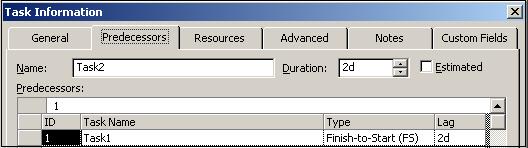
You can specify lag in the Task Information -> Predecessors tab:

Figure 1

Or in the table view:

Figure 2

There are two type of lag: delay and overlap.

Delay is indicated by a positive lag value and is called lag time in MS Project. It specifies that the successor task will start only after N days the predecessor task is completed (based on finish-start relationship). Figure 2 is an example of lag time (with positive two day lag).

Overlap is indicated by a negative lag value and is called lead time in MS Project. It specifies that the successor task will start N days before the predecessor task is completed (based on finish-start relationship). Figure 3 is an example of lead time (with negative one day lag).


Figure 3

Labels:

Thursday, July 06, 2006

Project2k3 : Gantt Chart Time Scale

I got an unusual feature enquiry from some one today. The question was :

When project plan displayed gantt chart from Microsoft Project Professional 2003, we can control a total of 3-tier of timeline. For example, tier-1 can display "Year" and tier-2 can display "Month", so, when you see the gantt chart, it is displayed "Year-Month" structure throughout the whole gantt chart.

Now the customer actually want to see that "Year-Month" structure for a period of time AND at the same gantt chart, they want to see "Year" structure (without revealing the month column) for the remaining period. Can it be done?


The simple answer is NO, it cannot be done.

This is an unusual feature enquiry , so far I haven't see any planning and scheduling tools that has this feature. I have use MS Project, Primavera and OpenPlan(while cover almost 80 to 90% of the planning and scheduling tool market) and none of these tool have that feature.

In my opinion, if it does allow you to do that, I think it will cause more inconsistency and confusion than doing anything good. Technically, it is also difficult and infeasible to implement this feature.

Just imagine the following scenario:
You want to display "Year-Month" for activities between 1-Jan-2006 to 31-Dec-2006. Then for activities after 31-Dec-2006, you only want to display "Year". Now, you have a few if not a lot of activities that span through this time period, EG : you have activity or WBS that start before 31-Dec-2006 and finish after 1-Jan-2007. How you think the gantt chart should now be draw ? Half in "Year-Month" and the other half in "Year"? If so, is it going to be very confusing ?

If the tool force you to have a clear cut of dates so that your activities does not overlap into the two time period, then you are going to have another problem. Now you have to break your overlapping activites into two separate activites each with no overlapping time period but it essentialy represent the same unit of task. This will make your planning much more harder, abnormal and of course result in a very confusing schedule.


If your objective is not to look at activities that are after certain time period, then just use a filter to filter out those activities that are not within the time period of your interest.

Labels:

PS2k3 : Project Server Active Directory Synchronization

I posted a document painting a few scenarios when Active Directory synchronization will work with Project Server and when it will not.

The URL is : http://workspaces.gotdotnet.com/jyps

Labels:

Sunday, May 21, 2006

Project2k3: Highlight completed task

I got a question on how to highlight the row of a completed task in MS Project to Red color.

To accomplish this, you need to write a VBA macro and run this macro after you finish updating your project.

Here is the macro that does the work.


Sub MarkCompletedTask()
Dim startRow As Integer
Dim tsk As task
Dim today As Date

startRow = 1
today = Date

SelectRow Row:=startRow, RowRelative:=False
Set tsk = ActiveCell.task
If tsk Is Nothing Then
Exit Sub
End If

Application.ScreenUpdating = False

Do While True
If tsk.PercentComplete = 100 Then
Font Color:=1
Else
Font Color:=16
End If

startRow = startRow + 1
SelectRow Row:=startRow, RowRelative:=False

Set tsk = ActiveCell.task
If tsk Is Nothing Then
Exit Do
End If
Loop

Application.ScreenUpdating = True
End Sub

Labels:

Thursday, May 11, 2006

PS2003 : Save all Server Projects locally

How to automate the process of dumping all projects in Project Server database into MPP file.
Here is the VBA macro that does that. Paste the following macro into MS Project's VBA editor and run it.


Sub ExportAllProjects()
Dim conn As ADODB.Connection
Dim connStr As String
Dim rs As ADODB.Recordset
Dim sql As String
Dim projName As String
Dim savePath As String
Dim outFile As String

savePath = "c:\projectfiles\"

connStr = "provider=sqloledb; data source=db_server_name; "
connStr = connStr & quot;initial catalog=projectserver; "
connStr = connStr & user id=sa; password=password"

sql = "SELECT PROJ_PROJECT "
sql = sql & " From MSP_PROJECTS "
sql = sql & " WHERE PROJ_TYPE = 0 "
sql = sql & " AND PROJ_ADMINPROJECT=0 "
sql = sql & " AND PROJ_VERSION='Published' "

Set conn = New ADODB.Connection
conn.Open connStr

Set rs = conn.Execute(sql)


While Not rs.EOF
projName = rs("PROJ_PROJECT") & ".Published"
outFile = Replace(rs("PROJ_PROJECT"), "<>\", "") & ".mpp"

FileOpen Name:=projName
FileSaveAs Name:=savePath & outFile, FormatID:="MSProject.MPP"
FileClose
rs.MoveNext
Wend

rs.Close
Set rs = Nothing
conn.Close
Set conn = Nothing

MsgBox "done"

Exit Sub

Err_Handler:
MsgBox Err.Description
If rs.State = adStateOpen Then rs.Close
If conn.State = adStateOpen Then conn.Close

Set rs = Nothing
Set conn = Nothing
End Sub

Labels:

Wednesday, May 03, 2006

PS2003: Update Other Fields in Timesheet view.

In the Web Access Timesheet View (Accessed via the Tasks top navigation bar), team member by default can only update the % Work Complete and Remaining Work column.

It is quite often that people ask whether they can update other field. One of the common requests is for team member to update Actual Start date.

Here is how you do it...


http://workspaces.gotdotnet.com/jyps

Labels:

Thursday, March 09, 2006

PS2003 : Creating new ProjectServer site with WSS integration.

If you are creating the second ProjectServer site using the EditSite tool and want to integrate with WSS, you need to change the Server Intranet Address in ProjectServer after creating the site in order for it to link correctly.

Take the following scenario.

I installed ProjectServer and WSS.

My ProjectServer URL is http://servername/ProjectServer and the WSS URL is http://servername:800.

Now I want to create another ProjectServer site and WSS site and integrate the two together.

The easist way for me to start is to backup the existing ProjectServer database and restore it as another database(EG: ProjectServer2).

Next, I create and extend another WSS site to run on port 850. so the WSS URL will be http://servername:850.

Now I use the EditSite tool to create another ProjectServer site. The URL for this PS site will be http://servername/projectServer2. When I create the site, I specify I want to setup WSS and ProjectServer integration.

If your didn't make any mistake, everything will work just fine as of this stage.

Now, I publish a new project to ProjectServer2 and automatically a new WSS project site will be created. Say for example, the URL for the project site is http://servername:850/sites/ProjectServer2_201.

Then I go to the project site and create a new issue. In the new issue page, if I click on the 'Select project tasks that are impacted by this issue' link or any of those related link at the bottom, you will notice Task Dialog does not show the correct task for the project. It either show the task for another project or it will be disabled.

When you save the issue, you will also notice there is no issue icon for that project in the Web Access Project Center. This show that the issue is not link back to the project.

After some tracing and hacking, I found out why it show the wrong project task. If your project ID is 201, the task dialog will actually retrieve tasks for project which has ID 201 from ProjectServer(the default one) and not ProjectServer2. If it cannot find a project with ID 201 in ProjectServer, it will disable the dialog.

Here come the question, why is it so?

When ProjectServer create a new WSS site for a project, it will insert the ProjectServer intranet URL into the site's SPWeb property. The intranet URL is used by the Task dialog to retrieve the project task. The intranet URL is stored in the database. So when I restore the ProjectServer database to ProjectServer2, it will
carry the orginial value which is 'http://servername/projectserver' in ProjectServer2 database.

To correct this, after you create the new ProjectServer site, you need to logon to the Web Access (EG: http://servername/projectserver2), go to Admin -> Server Configuration. Then change the Server Intranet Address to 'http://servername/projectserver2' (or whatever your project server url).

Labels:

Friday, January 27, 2006

PS2003: Sort view by name

All the views in Project Server Web Access are currently not sorted by the view name. Instead they are sort by the ViewID. This could pose a usability problem when you have a long list of views. Your users will need to scroll through the whole list to find the view they want.

If you are really desperate in getting the view to sort by name, there are 2 stored proc in the Project Server database that control the retrieving of views.

The 2 SP are MSP_WEB_SP_SEC_GetAllResViewsByType and MSP_WEB_SP_SEC_GetAllResProjectViewsByProject.

To order view by name, add the following order clause at the end of the SELECT statement:

order by wview_name

However, modifying the SP is not supported. Do it at your own risk.

Labels: